01 · OVERVIEW
Activity fitness
tracker smartwatch
UX/UI redesign project
02.03.26 — 30.04.26
Nawang Zangpo Lachenpa
Nilakshi Yein (Guide)

BeyondtheSweat

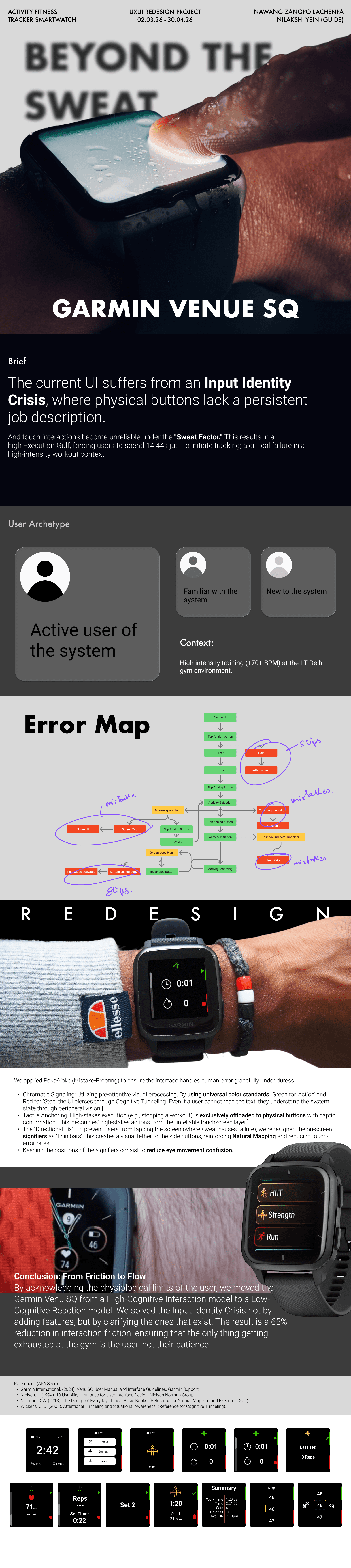
Redesigning how the Garmin Venu Sq starts, tracks and stops a workout when your fingers are wet and your heart rate is past 170.
UX researchInteraction designWearable UIError analysis
78%
Tue 12
2:42
6125
110 kcal
GARMIN
Fig. 00 — Wet glass, live session
78%
Tue 12
2:42
6125
110 kcal
GARMIN
HR 172 bpm · Zone 5
Touch input: wet
Live prototype — redesigned flow
Action button · press = on / start / stop●Hold 2 s = controls menu●Hold 5 s = assistance●Back button · press = back●In activity = lap / new set●Hold = menu●Touchscreen · wet = unreliable●Action button · press = on / start / stop●Hold 2 s = controls menu●Hold 5 s = assistance●Back button · press = back●In activity = lap / new set●Hold = menu●Touchscreen · wet = unreliable●
Project
Overview
01

Mid-workout, a watch has one job: do the obvious thing on the first press. On the Venu Sq the two buttons change meaning from screen to screen, and the touchscreen stops listening the moment it gets wet. This project fixes the controls people already have instead of adding new ones.

RoleUX research, interaction and UI design
Timeline8 weeks · 02 Mar — 30 Apr 2026
GuideNilakshi Yein
SettingIIT Delhi gym, HIIT and strength sessions
DeviceGarmin Venu Sq · 1.3" touchscreen · 2 buttons
0.00s

to start tracking a workout on the original flow

0+

BPM: the heart rate users were at when they reached for the watch

0

different jobs shared between just 2 physical buttons

0%

less interaction friction after the redesign

The device
as shipped

Secondary research: Garmin's own Venu Sq owner's manual, read against what people did in the gym.

02

Action button

TOP
PressTurn on · start / stop the activity timer
Hold 2 sControls menu (incl. power)
Hold 5 sRequest assistance
78%
Tue 12
2:42
6125
110 kcal
GARMIN
2 BUTTONS · 7 JOBS · 1 WET SCREEN

Back / Menu button

BOTTOM
PressPrevious screen
Press, in activityNew lap · new set · next stage
HoldSettings for the current screen
Display

1.3" LCD touchscreen, 240 × 240 px

Touch

Swipe, tap, double-tap to wake, swipe right = back

Water rating

5 ATM — survives water, but water still fools the touch layer

Battery

Up to 6 days smartwatch, 14 h GPS

THE CRISIS

The same press means back on one screen and new set on the next. A button with no fixed job is a button people stop trusting. We called this the Input Identity Crisis.

Research
Approach

From the first gym session to a tested redesign in eight and a half weeks.

03

We studied the watch where it fails: on a sweating wrist, between sets.

W1 · 02 Mar
W2 · 09 Mar
W3 · 16 Mar
W4 · 23 Mar
W5 · 30 Mar
W6 · 06 Apr
W7 · 13 Apr
W8 · 20 Apr
W9 · 27 Apr
Discover
Gym observation, task timing
Define
Error map, insights, archetypes
Ideate
Principles
Prototype
Watch UI, interactive flow
Validate
Re-test, refine, document
M01

Contextual observation

IIT Delhi gym, during HIIT and strength sessions

→ Field notes on every reach for the watch
M02

Task walkthrough + timing

"Start a strength workout", wrist-raise to recording

→ Baseline: 14.44 s
M03

Error mapping

Every press, hold and tap logged against the intended path

→ Slips vs mistakes (Norman, 2013)
M04

Heuristic evaluation

Nielsen's 10 heuristics applied to the activity flow

→ Visibility of status and consistency failed first
M05

Literature review

Wet-touch interference, attentional tunneling, arousal and attention

→ Why the failures happen, not just where
M06

Competitive teardown

Garmin 5-button watches, Apple Watch Ultra

→ Start/stop gets a dedicated, never-changing control
In the
field

What we saw at the IIT Delhi gym, 170+ BPM, between sets.

04
FIG. 04 — THE CONDITIONS: GRIP, SWEAT, CHALK. NONE OF THEM GO WITH A TOUCHSCREEN.

Five moments where the watch lost the athlete.

Logged on the error map during sessions and sorted with Don Norman's split: a slip is the right intention executed wrong; a mistake is a wrong mental model of what the device will do.

FN-01
Hold, not press

Trying to wake the watch, a tired thumb held the top button a beat too long and landed in the controls menu.

Slip
FN-02
The phantom button

People tapped the on-screen indicator as if it were a key. The screen ignored them.

Mistake
FN-03
Blackout mid-choice

The display timed out while choosing an activity. A tap on the dark screen did nothing, so the flow started over.

Mistake
FN-04
"Is it recording?"

After starting, the mode indicator wasn't clear enough, so people stood still and waited for proof.

Mistake
FN-05
Wrong exit

Reaching for pause, the bottom button logged a new set / rest instead. The data was wrong and nobody noticed until later.

Slip
Error
map

The intended path is 9 steps. It broke in 5 places: 2 slips, 3 mistakes.

05

Nine steps to start a set. Five ways to fail.

Intended pathSystem ambiguityError
Device offTop buttonPressHoldControls menuTurn onTop buttonActivity selectionScreen goes blankScreen tapNo resultTop buttonTurn onTouch the indicatorNo resultTop buttonActivity initiationMode indicator unclearUser waitsActivity recordingScreen goes blankBottom buttonRest mode onSLIPMISTAKEMISTAKEMISTAKESLIP
FIG. 05 — WORKING ARTIFACT

The original map, marked up by hand during sessions. Circles were drawn where people stalled or backtracked. The clean version above is the same data, reorganised so the failure clusters read at a glance.

Every red cluster sits next to either a button with two meanings or a touch target that stopped working. None of them came from a missing feature.

Research
Insights
06
01
Literature + observation

Sweat turns touch into a guess.

Capacitive screens can't tell a fingertip from a film of water. In lab tests on phones, water droplets alone pushed gesture errors and selection times way up (Tung et al., 2018). On a 1.3" wrist screen in a hot gym, every tap became a coin flip.

02
Error map + manual

A button with two jobs gets the wrong one.

"Back" becomes "new set" the moment an activity starts. Under fatigue people press from habit, not from reading the screen, so a context-dependent button produces slips by design.

03
Literature

At 170+ BPM, the eye only takes in colour and position.

High arousal narrows the range of cues people use (Easterbrook, 1959) and pulls attention into a tunnel (Wickens, 2005). Small text at the edge of the screen is effectively invisible mid-set.

04
Observation

"Started" has to be seen and felt.

People waited because the recording state looked like the ready state. Confirmation needs a change that survives a half-second glance, plus a buzz on the wrist.

KEY FINDING

The watch doesn't lack features. Its controls just don't keep one meaning, and the screen can't be trusted when it matters most.

User
Archetypes

Composite archetypes, built from who we watched in the gym, not from demographics.

07
Primary · Type A
The active user

Trains 4–5 times a week, HIIT and strength. Wears the watch every session.

INTENSITY AT THE WATCH
GOALS
+Start logging in one motion
+Never lose or split a set by accident
+Read the essentials without stopping
FRUSTRATIONS
–Accidental lap / rest presses
–Taps that don't register with wet fingers
DESIGN IMPLICATION
Start and stop live on physical buttons, same button every time.
Secondary · Type B
Familiar with the system

Has used Garmin or another watch before. Runs on muscle memory.

INTENSITY AT THE WATCH
GOALS
+Predictable button mapping
+Shortcuts that behave like other watches
FRUSTRATIONS
–Same press, different result per screen
–Menus that appear on a long press
DESIGN IMPLICATION
Buttons keep one job; on-screen marks point to them.
Secondary · Type C
New to the system

First smartwatch. Reads the screen to understand what it's doing.

INTENSITY AT THE WATCH
GOALS
+Know for certain it's recording
+Learn the controls without a manual
FRUSTRATIONS
–Small text, unclear states
–Screen timing out mid-choice
DESIGN IMPLICATION
State shown by colour and shape, confirmed with haptics.
Journey
map

One strength session, start to save. Emotional curve from observation; the green line is the target we designed for.

08

The lowest points all sit in the first 15 seconds.

01
Walk in
02
Wake watch
03
Find activity
04
Pick Strength
05
Start
06
Mid-set
07
Rest / next set
08
Stop & save
NEUTRAL
Ready to train
Hold vs press slip
Screen times out
Taps the indicator
"Is it recording?"
170+ BPM, wet hands
Wrong button, wrong log
Checks the data twice
HMW 01

How might we let an athlete start a workout without reading or touching the screen?

HMW 02

How might we give each button one job that never changes, on any screen?

HMW 03

How might we make "recording" obvious in a half-second glance, and on the wrist?

Problem
statement

Venu Sq users training at high intensity can't reliably start, track and stop a workout, because the buttons change meaning between screens and the touchscreen fails when wet.

Design
principles

Poka-yoke, or mistake-proofing: make the wrong action hard and the right one obvious, even under duress.

09

Four rules that make the interface handle human error gracefully.

P01

Chromatic signaling

Green means act, red means stop: the most widely understood colour code there is. It reads in peripheral vision, so the state of the watch comes through even when the text doesn't.

0:42
3
GARMIN
P02

Tactile anchoring

High-stakes actions such as stopping a workout move off the touchscreen and onto a physical button, confirmed with a buzz. What matters most no longer depends on dry fingers.

Reps
---
Set Timer
0:14
GARMIN
P03

The directional fix

Thin bars on the screen edge sit exactly beside the button they belong to. They tether the on-screen meaning to the physical control, so nobody taps the glass looking for a button.

172BPM
Zone 5
GARMIN
P04

Fixed positions

Signifiers never move between screens. Same place, same colour, same job: the eye stops searching and the thumb stops guessing.

0:42
3
Reps
---
Set Timer
0:14
Set 2

Colour never works alone. Every green and red is paired with a shape (▶ start, ■ stop, ✓ save, 🗑 discard), so the system still reads for people with red–green colour blindness.

New
flow

Top button moves you forward. Bottom button ends or splits. Swipes only browse; they never commit.

10

One direction per button, on every screen.

Watch faceActivity list▲CardioStrengthWalkRecording▲Heart rateReps + set timerSet 2 …n▼Save ✓ / Discard▲▼Log reps · kgSummary
▲Top button: forward / start / confirm▼Bottom button: stop / new set- -Swipe: browse metrics only
Interface
All screens

Thirteen screens, 240 × 240. Every one keeps the bars in the same place.

11

Read in a glance. Driven by feel.

Pure black base for contrast in harsh gym lighting, one metric per row, and only three colours with meaning: green to go, red to stop, gold for what's selected. The watch on the right is running the redesigned flow, start to summary.

78%
Tue 12
2:42
6125
110 kcal
GARMIN
78%
Tue 12
2:42
6125
110 kcal
GARMIN
Summary
Work Time
Time
Sets
Calories
Avg. HR
1:20.09
2:21:29
4
10
71 Bpm
GARMIN
78%
Tue 12
2:42
6125
110 kcal
01
Watch face
Bars on the edge from the very first screen: green top, red bottom.
78%
Cardio
Strength
Walk
02
Activity list
Three big targets; the highlighted row follows the top button.
78%
2:42
03
Strength, ready
Gold = selected, not yet running.
0:01
0
04
Started
The icon turns green the instant recording begins.
0:42
3
05
Recording
▶ and ■ sit beside the buttons that trigger them.
71BPM
No zone
06
Heart rate
Swipe to browse; swiping never commits.
Reps
---
Set Timer
0:22
07
Reps + set timer
Rest countdown, big enough to read mid-breath.
Set 2
08
Set 2
Bottom press splits the set. One full-screen word confirms it.
1:20
1
71 Bpm
09
Finish
✓ save on top, 🗑 discard on the bottom. No hidden menus.
Last set:
0 Reps
10
Last set
Pencil to correct a count after the fact.
Rep
45
46
47
11
Log reps
Scroll picker, gold focus ring.
Kg
45
46
47
12
Log weight
Same picker, same position, new unit.
Summary
Work Time
Time
Sets
Calories
Avg. HR
1:20.09
2:21:29
4
10
71 Bpm
13
Summary
Work time, total time, sets, calories, average HR.
Green = go●Red = stop●Gold = selected●Buttons commit●Swipes browse●Signifiers never move●Green = go●Red = stop●Gold = selected●Buttons commit●Swipes browse●Signifiers never move●
On the
wrist

The redesign, running on the actual 1.3" screen.

Green and red bars line up with the case buttons, so the thumb finds the right one without looking.

BEFORE

The original face: rings, complications and touch targets designed for a calm wrist.

AFTER
78%
Tue 12
2:42
6125
110 kcal
0:42
3
172BPM
Zone 5
Set 2

One metric per row, three colours with meaning, and every action anchored to a physical button.

Visual
language
12
#3DDC64
Go

Start, confirm, forward. Top button.

#F2412F
Stop

Stop, split, discard. Bottom button.

#F5C451
Selected

Focus and 'ready' states. Never an action.

#000000
Base

True black for contrast in harsh light.

TYPE · ROBOTO, ON A 240 PX CANVAS
2:42
Set Timer 0:22
Tue 12 · 6125 steps · 110 kcal
Primary
One per screen
Secondary
Bold, centred
Label
Never critical
ICONS · 1.6 PX STROKE
Outcome
& reflection
13
0%
less interaction friction

Measured against the 14.44-second baseline for starting a workout. The gain came from clarifying the controls the watch already had, not from adding new ones.

From friction to flow.

By designing around the physiological limits of someone mid-workout, we moved the Venu Sq from a high-cognitive interaction model to a low-cognitive reaction model. The Input Identity Crisis was solved by giving each control one job and one colour, so the only thing exhausted at the gym is the user, not their patience.

WHAT WORKED

Moving every commit (start, stop, save) to physical buttons removed the wet-touch failures from the critical path entirely.

WHAT I'D TEST NEXT

A larger group across running and cycling, timed on-device, plus distinct haptic patterns for start, split and stop.

WHERE IT GOES NEXT

A Connect IQ prototype on real hardware, and a review of how the bars behave with Garmin's always-on display.

References
APA style
  1. Easterbrook, J. A. (1959). The effect of emotion on cue utilization and the organization of behavior. Psychological Review, 66(3), 183–201.
  2. Garmin International. (2024). Venu Sq user manual and interface guidelines. Garmin Support.
  3. Garmin Ltd. Venu Sq owner's manual: Device overview (buttons and touchscreen).
  4. Nielsen, J. (1994). 10 usability heuristics for user interface design. Nielsen Norman Group.
  5. Norman, D. A. (2013). The design of everyday things (Revised ed.). Basic Books.
  6. Tung, Y.-C., Goel, M., Zinda, I., & Wobbrock, J. O. (2018). RainCheck: Overcoming capacitive interference caused by rainwater on smartphones. Proc. ICMI '18. ACM.
  7. Wickens, C. D. (2005). Attentional tunneling and task management. International Symposium on Aviation Psychology.
  8. Apple Inc. Apple Watch Ultra user guide: Use the Action button.
Next project●Flash Flood●Next project●Flash Flood●Next project●Flash Flood●Next project●Flash Flood●Next project●Flash Flood●Next project●Flash Flood●
UP NEXT
Flash Flood
An explainer video